
By Rawnok Jahan
Audio Description on IPTV: How to Turn On the Descriptive Audio Track
If a stream carries a described audio track, the right player lets you switch to it in two taps — from the same menu you'd use to change language or subtitles.
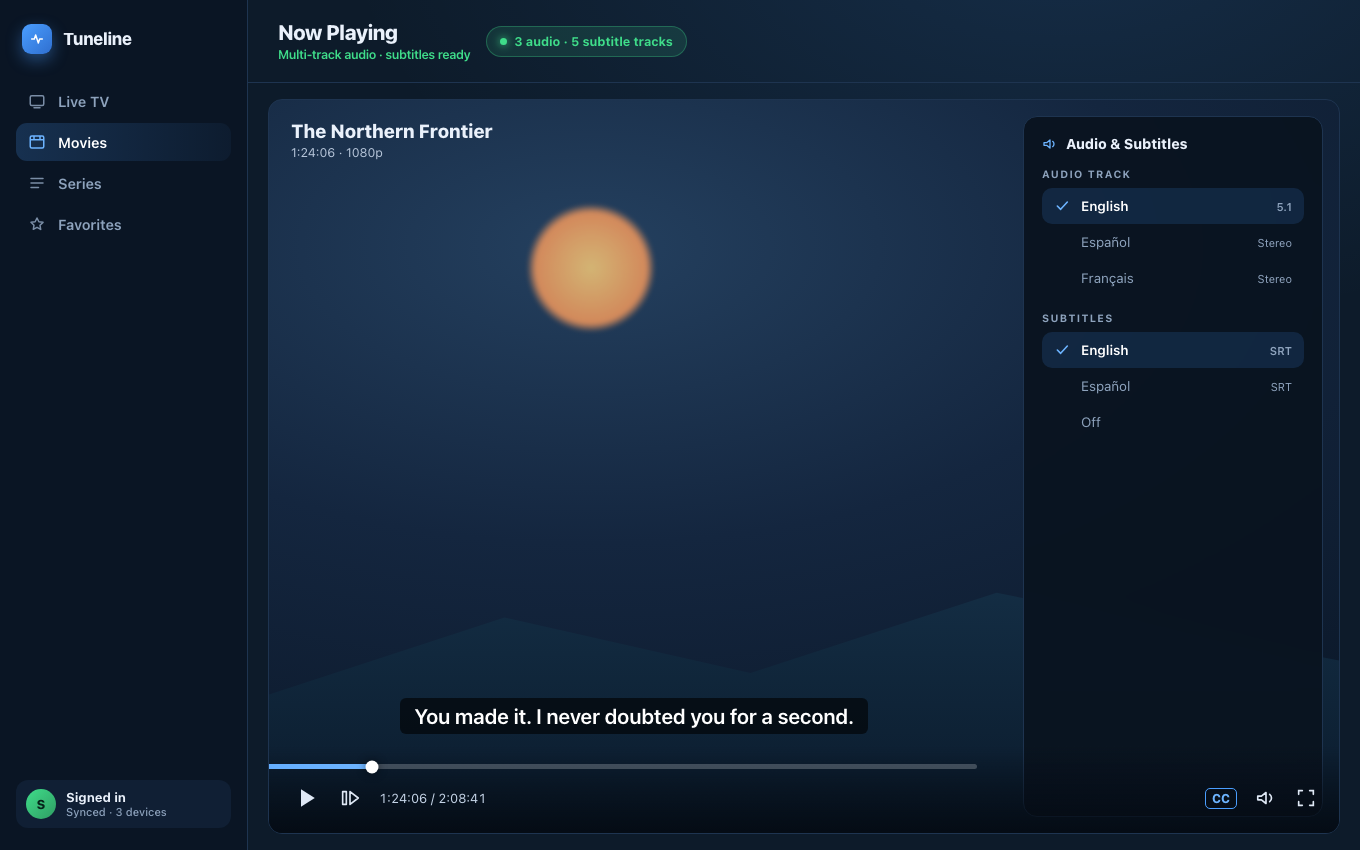
Audio description lives in the same track menu as language and subtitles.
Audio description — sometimes called descriptive audio, described video, or the "AD" track — is a narration that describes the visual action during the natural pauses in dialogue. For blind and low-vision viewers it's the difference between following a program and missing half of it. It's a standard accessibility feature on broadcast, but on IPTV it's less obvious where it lives or whether it's even there.
This guide explains how descriptive audio tracks work on IPTV streams and how to find and switch to one. We'll use Tuneline for the steps, but the concepts apply to any player with proper track support.
What Audio Description Actually Is
A described program carries a second audio track in addition to the normal one. That extra track is the regular soundtrack with a narrator layered in, speaking during the gaps between lines of dialogue: "She crosses the room and picks up the letter," "A car pulls up outside in the rain." You don't get a separate video — same picture, different audio.
Because it's just another audio track, switching to audio description is mechanically the same as switching languages. If a stream offers English, Spanish, and a described English track, they're all sitting in the same list; the described one is usually labelled something like "English (Audio Description)," "AD," "described," or "narrated."
Whether a Stream Even Has It
Here's the honest part: audio description is only available if the stream carries the track. A player can't invent narration that isn't in the feed. Whether AD exists depends entirely on your provider and the specific channel or program:
- It's per-channel, and often per-program. A broadcaster may attach a described track to prime-time drama but not to a live sports feed.
- It's more common on major broadcast channels that carry the AD track through from the original signal, and rarer on smaller or re-encoded feeds.
- Some providers strip extra tracks during re-encoding to save bandwidth, which removes AD even when the original had it.
So the first question isn't "how do I turn it on" — it's "does this stream include a described track at all?" The way you check is by opening the audio-track menu and seeing what's listed.
How to Find and Switch to the Descriptive Track
The workflow is short once you know where to look.
Step 1 — Start playing the channel or program
Audio tracks are read from the live stream, so you need something actually playing before the tracks appear. Open the channel you want.
Step 2 — Open the audio track menu
In Tuneline, open the playback controls and find the audio / subtitle track selector (the same menu you'd use to change spoken language). It lists every audio track the current stream is carrying.
Step 3 — Look for the described track
Scan the list for a track labelled "Audio Description," "AD," "described," or a language name with "(described)" after it. Select it. The audio switches immediately — same picture, now with narration in the dialogue gaps.
Step 4 — If there's no described track listed
If the only options are plain language tracks, this program simply isn't carrying audio description. That's a provider/broadcast limitation, not a player setting you're missing. A few things to try:
- Switch to a different channel carrying the same content — a main national broadcaster is more likely to include AD than a re-encoded mirror.
- Check a different program on the same channel. AD is frequently program-by-program.
- Ask your provider whether they preserve secondary audio tracks; some strip them and can offer a feed that doesn't.
Why a Full-Featured Player Matters for Accessibility
Audio description only helps if your player actually exposes every audio track in the stream and lets you switch cleanly. Basic players sometimes lock you to the default track, or don't surface secondary audio at all — so even when a described track is present, you can't reach it. That turns an accessibility feature that exists in the feed into one you can't use.
Tuneline surfaces all audio and subtitle tracks a stream carries and lets you switch between them mid-playback, on Windows, macOS, Linux, Android, Android TV, Fire TV, iPhone, iPad, and Apple TV. If the described track is in the stream, it's in the menu.
Quick Reference
| Situation | What to do |
|---|---|
| Want narration of on-screen action | Open the audio-track menu, pick the "AD"/"described" track |
| No described track appears | The stream isn't carrying one — try a different channel or the main broadcaster |
| Track menu is missing entirely | Your player doesn't expose secondary audio — switch to one that does |
| Described track is out of sync | Re-select the track, or restart the stream to re-sync audio |
Audio description is one of the most useful accessibility features in television, and on IPTV it's often already there — you just need a player that puts it within reach.
Download Tuneline — it surfaces every audio and subtitle track a stream carries, so accessibility tracks are two taps away.
Related: How to Set Up Subtitles & Multiple Audio Tracks · Portal Code vs M3U vs Xtream: Which Login Do You Have?
Share this article
Get Tuneline free
A clean, no-account media player for macOS, Windows, Linux, Android, TV, and iOS. Bring your own playlist.
Download freeRead this article in another language
- EnglishAudio Description on IPTV: How to Turn On the Descriptive Audio Track
- FrançaisDescription audio sur IPTV : Comment activer la piste audio descriptive
- العربيةوصف الصوت على IPTV: كيفية تشغيل مسار الصوت الوصفي
- বাংলাআইপিটিভিতে অডিও বর্ণনা: বর্ণনামূলক অডিও ট্র্যাক কীভাবে চালু করবেন
- ČeštinaZvukový popis v IPTV: Jak zapnout zvukovou stopu s popisem
- DanskLydbeskrivelse på IPTV: Sådan slår du det beskrivende lydspor til
- DeutschAudiodeskription auf IPTV: So aktivieren Sie die beschreibende Audiospur
- ΕλληνικάΗχητική περιγραφή στο IPTV: Πώς να ενεργοποιήσετε το κομμάτι περιγραφικής αφήγησης
- EspañolDescripción de audio en IPTV: Cómo activar la pista de audio descriptivo
- Español (Latinoamérica)Descripción de audio en IPTV: cómo activar la pista de audio descriptivo
- SuomiÄänikuvaus IPTV:ssä: näin otat kuvailevan ääniraidan käyttöön
- हिन्दीIPTV पर ऑडियो विवरण: वर्णनात्मक ऑडियो ट्रैक कैसे चालू करें
- MagyarHang वर्णal leírás IPTV-n: a leíró hangsáv bekapcsolása
- ItalianoDescrizione audio su IPTV: come attivare la traccia audio descrittiva
- 한국어IPTV 음성 설명: 설명 음성 트랙을 켜는 방법
- Bahasa MelayuPenerangan Audio pada IPTV: Cara Menghidupkan Trek Audio Deskriptif
- NederlandsAudiobeschrijving op IPTV: Hoe zet je het beschrijvende audiokanaal aan
- NorskLydpresentasjon på IPTV: Slik slår du på det beskrivende lydsporet
- PolskiOpis dźwięku na IPTV: Jak włączyć ścieżkę audio z opisem
- PortuguêsDescrição de Áudio no IPTV: Como Ativar a Faixa de Áudio Descritiva
- RomânăDescriere audio pe IPTV: cum activezi pista audio descriptivă
- РусскийАудиоописание на IPTV: как включить дорожку с описанием звука
- СрпскиAudio-deskripcija na IPTV-u: Kako uključiti deskriptivnu audio-stazu
- SvenskaLjudbeskrivning på IPTV: Så aktiverar du det beskrivande ljudspåret
- TagalogAudio Description sa IPTV: Paano I-on ang Descriptive Audio Track
- TürkçeIPTV'de Ses Açıklaması: Açıklayıcı Ses Parçası Nasıl Açılır
- Tiếng ViệtMô Tả Âm Thanh Trên IPTV: Cách Bật Âm Thanh Mô Tả
Tuneline is a media player application. It does not provide, host, or distribute any content. You bring your own playlist, exactly as you would with VLC.