
By Shamir
How to Navigate Your Player with a TV Remote (D-Pad Guide)
There's a special kind of frustration that comes from using a phone-or-desktop app on a television. Tiny touch targets, a cursor you can't reach, menus that assume a mouse — all driven by a five-button remote. The fix isn't a better remote; it's a player built for the 10-foot experience, where everything is designed around a D-pad. This guide explains how that works and the remote habits that make big-screen playback genuinely pleasant.
The honest framing: Tuneline plays content you provide. On TV, the goal is simple: make your sources easy to drive from the couch with the remote in your hand.
The D-Pad Is the Whole Interface
A TV remote has, essentially, five inputs that matter: Up, Down, Left, Right, and Select (OK) — plus Back. A proper TV interface maps everything to those. Instead of a cursor, there's focus: a highlighted element that moves between items as you press the directional pad.
- Up/Down/Left/Right move focus between items (a grid of streams, sidebar categories, menu options).
- Select / OK activates the focused item (play it, open it, toggle it).
- Back steps up a level — out of playback, out of a menu, back to the list.
Once you internalize "the highlight is my cursor," the whole thing clicks. There's no hunting for a pointer; you just steer the highlight.
Focus: Why It Should Always Be Obvious
The single biggest difference between a good TV app and a bad one is how clearly it shows focus. On a couch, three metres back, you must be able to tell at a glance what's selected. A well-built 10-foot UI gives the focused item a bold highlight, a scale-up, or a glow — something unmistakable. If you ever feel "lost" with a remote, it's almost always because the app's focus indicator is too subtle.
A practical habit: press a direction once and watch where the highlight goes. That tells you the layout's navigation order, and from there it's predictable.
The Layout, Translated to a Remote
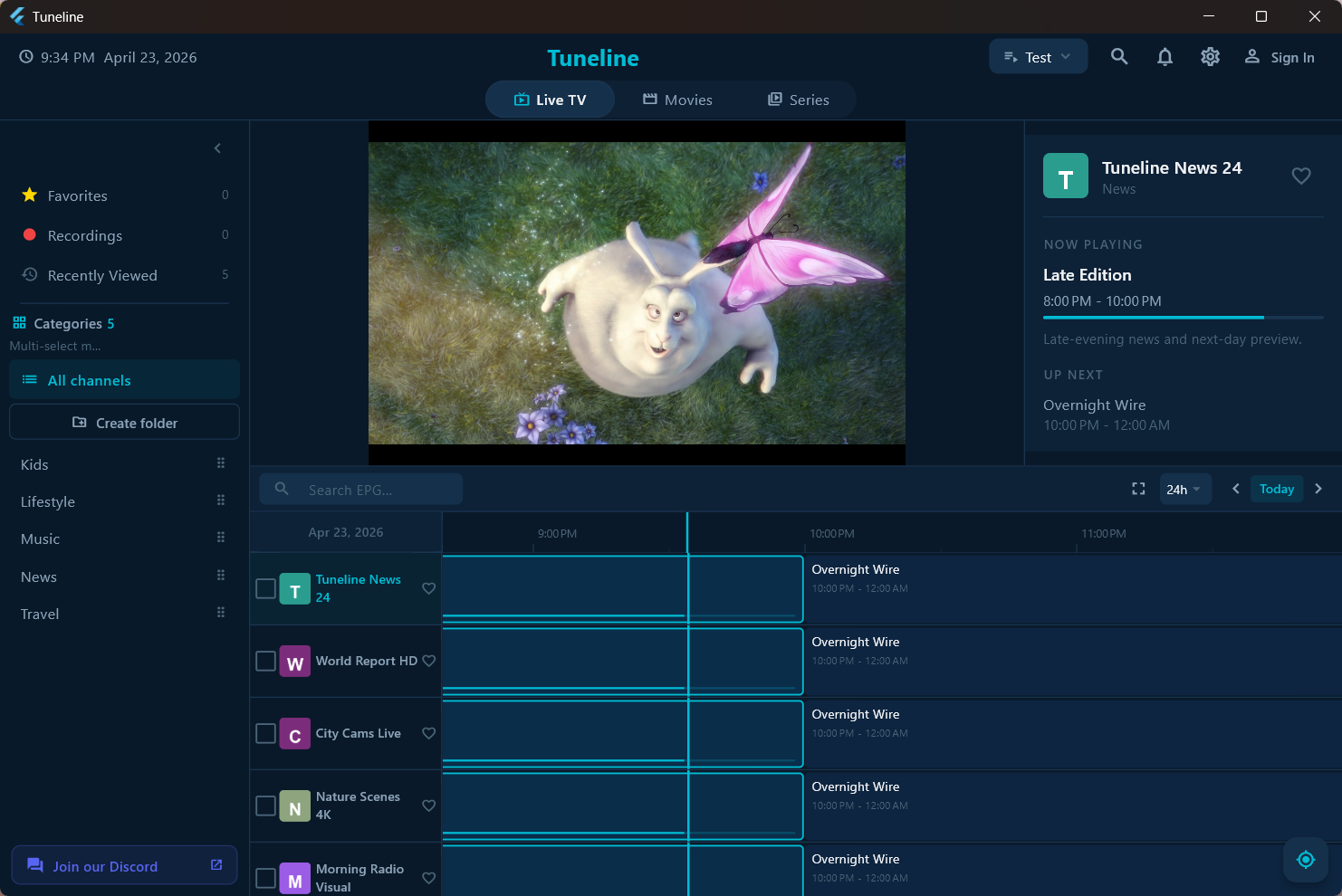
Most TV media-player screens have the same regions. Here's how you reach each with the D-pad:
| Region | How to get there | What it does |
|---|---|---|
| Sidebar / categories | Press Left from the content area | Switch between groups/categories |
| Content grid | Press Right into it, then arrows | Browse streams; OK to play |
| Now-playing | OK on an item | Starts playback fullscreen |
| Playback controls | OK or Up/Down during play | Pause, seek, tracks, info |
| Up a level | Back | Exit playback / close menus |
The mental model: Left for the map (categories), Right for the content, OK to play, Back to retreat. That covers 95% of everything.
Remote Tricks That Save Time
A few moves that make a big difference once you know them:
- Favorites are your remote's best friend. Scrolling a huge grid with a D-pad is slow. Star your regulars so they sit in one short list at the top — two presses instead of twenty.
- Use the guide/EPG for "what's on." On a remote, a program guide grid is far faster than opening streams one by one to see what's playing.
- Long-press / OK-hold often opens a context menu (add to favorites, info) without leaving the grid — check what your remote's hold does.
- Back, don't navigate home. To leave playback, Back is one press; arrowing to an exit button is several. Train yourself to reach for Back.
- Voice remotes (Android TV / Fire TV) can jump you to search — handy when a name is faster spoken than spelled out with a D-pad.
Platform Notes
The D-pad model is universal, but each platform's remote has quirks:
- Android TV / Google TV — standard D-pad + OK + Back, usually a voice button. The reference experience.
- Fire TV / Firestick — same five-way pad; the menu (≡) and back buttons matter. Some quirks around long-press and the Alexa button.
- Samsung Smart TV — Tizen remotes sometimes use a pointer; a streaming stick gives you a cleaner D-pad experience.
- Game controllers / keyboards — many TV setups accept a Bluetooth controller (D-pad = arrows) or keyboard (arrow keys + Enter + Esc map to D-pad + OK + Back), which can be faster for heavy browsing.
Troubleshooting Remote Navigation
- Focus seems stuck / nothing highlights → press any direction once to "wake" focus; if a dialog is open, Back out of it first.
- OK does nothing on an item → the item may be a header/category, not a playable stream. Arrow to an actual stream.
- Can't find playback controls → press OK or Up/Down during playback to reveal them; they auto-hide to keep the picture clean.
- Remote feels laggy → that's often the device, not the app — a low-end stick under load. Close background apps.
FAQ
How do I navigate a media player with just a TV remote?
Use the D-pad to move the on-screen focus highlight, OK to select/play, and Back to go up a level. Left reaches categories, Right enters the content grid.
Why can't I tell what's selected on my TV?
The app's focus indicator is too subtle (or it's not a true 10-foot UI). A proper TV player makes the focused item obviously highlighted. Press a direction once and watch the highlight move.
Can I use a keyboard or game controller instead of the remote?
Usually yes. Arrow keys / a controller's D-pad map to navigation, Enter/A to OK, and Esc/B to Back — often faster than the remote for heavy browsing.
What's the fastest way to reach my regular streams with a remote?
Favorites. Star them once and they live in a short list at the top — far quicker than D-padding through a big grid each time.
Bottom Line
- A TV player is driven by focus + five buttons: D-pad to move the highlight, OK to play, Back to retreat.
- The mental model is Left = categories, Right = content, OK = play, Back = up.
- Clear focus highlighting is what separates good TV apps from frustrating ones.
- Lean on favorites and the EPG so you press five buttons, not fifty.
Want a player built for the couch? Download Tuneline for your TV or stick — a real D-pad-first interface, free and ad-free.
— Shamir
Share this article
Get Tuneline free
A clean, no-account media player for macOS, Windows, Linux, Android, TV, and iOS. Bring your own playlist.
Download freeRelated articles
- Ethernet vs Wi-Fi for 4K Streams: What Actually Matters (2026)
- Linux Video Playback in 2026: Wayland, VA-API and HDR
- Streamflation 2026: What Streaming Really Costs Now
- What Is a Stream URL, and How Do You Check Yours? (2026)
- What Is a .TS File, and Why Your Streams Are Made of Them
Read this article in another language
- EnglishHow to Navigate Your Player with a TV Remote (D-Pad Guide)
- FrançaisComment naviguer dans votre lecteur avec une télécommande TV (Guide D-Pad)
- AfrikaansHoe om jou speler met ’n TV-afstandbeheer te navigeer (D-pad-gids)
- العربيةكيفية التنقل في مشغلك باستخدام جهاز التحكم بالتلفاز (دليل D-Pad)
- বাংলাটিভি রিমোট দিয়ে আপনার প্লেয়ার কীভাবে চালাবেন (ডি-প্যাড গাইড)
- ČeštinaJak ovládat přehrávač dálkovým ovladačem televizoru (průvodce ovládáním směrovým křížem)
- DanskSådan navigerer du i din afspiller med en tv-fjernbetjening (D-pad-guide)
- DeutschSo navigieren Sie Ihren Player mit der TV-Fernbedienung (D-Pad-Anleitung)
- ΕλληνικάΠώς να χειρίζεστε το player σας με το τηλεχειριστήριο της τηλεόρασης (Οδηγός D-pad)
- EspañolCómo navegar por su reproductor con el control remoto de un televisor (Guía del D-Pad)
- Español (Latinoamérica)Cómo navegar en tu reproductor con el control remoto de la TV (guía del pad direccional)
- SuomiNäin käytät soitinta television kaukosäätimellä (ristiohjainopas)
- हिन्दीटीवी रिमोट से अपने प्लेयर को कैसे नेविगेट करें (डी-पैड गाइड)
- MagyarHogyan navigálj a lejátszóban tévé távirányítójával (D-pad útmutató)
- ItalianoCome navigare il tuo lettore con un telecomando TV (Guida al D-Pad)
- 한국어TV 리모콘으로 플레이어를 탐색하는 방법 (D패드 가이드)
- Bahasa MelayuCara Menavigasi Pemain Anda dengan Alat Kawalan Jauh TV (Panduan D-Pad)
- NederlandsJe mediaspeler navigeren met een tv-afstandsbediening (D-Pad handleiding)
- NorskSlik navigerer du i spilleren med en TV-fjernkontroll (guide til styrekorset)
- PolskiJak poruszać się po odtwarzaczu za pomocą pilota TV (Przewodnik po D-Padzie)
- PortuguêsComo Navegar seu Player com Controle Remoto de TV (Guia de D-Pad)
- RomânăCum să navighezi în player cu telecomanda televizorului (ghid pentru D-pad)
- РусскийКак управлять плеером с пульта ТВ (руководство по D-Pad)
- СрпскиKako da upravljate plejerom pomoću TV daljinskog upravljača (vodič za D-pad)
- SvenskaSå navigerar du i din spelare med en TV-fjärrkontroll (guide till styrkorset)
- TagalogPaano I-navigate ang Iyong Player Gamit ang TV Remote (Gabay sa D-Pad)
- TürkçeTV Uzaktan Kumandasıyla Oynatıcınızda Gezinme (D-Pad Rehberi)
- Tiếng ViệtCách Điều Hướng Trình Phát của Bạn Bằng Điều Khiển Tivi (Hướng Dẫn D-Pad)
Tuneline is a media player application. It does not provide, host, or distribute any content. You bring your own playlist, exactly as you would with VLC.